

Generate cards
anki-llm generate turns a word, phrase, or concept into several candidate
cards. Its terminal UI keeps generation and import separate so you can inspect,
edit, reject, or regenerate every candidate before it reaches Anki.
Create a generation prompt
Section titled “Create a generation prompt”The recommended starting point is the interactive prompt wizard:
anki-llm workspace initanki-llm generate-initChoose a deck and note type. The wizard samples existing notes and asks an LLM
to create a prompt that matches their fields, style, and formatting. It saves
the result in the workspace prompts/ directory unless you provide a specific
output path.
Review the generated file before using it. A generation prompt declares the Anki destination and maps short model-facing keys to Anki fields:
---title: Japanese Vocabularydescription: Contextual sentence cards with readingsdeck: Japanese::Vocabularynote_type: Basicfield_map: front: Front kanji: Kanji reading: Reading explanation: Explanation---The body must use {term} and {count}, ask for a JSON array, and show an exact
example whose keys match field_map. Arrays returned as field values become
HTML lists during import.
For a runnable starting point, see the vocabulary generation example or the more detailed Japanese contextual example. The prompt reference documents generation frontmatter.
If you want the wizard without API access, run:
anki-llm generate-init --copyThe wizard copies its analysis prompt to the clipboard. Paste that prompt into a
browser-based LLM, paste the complete response back into the terminal, then type
END on its own line. The wizard saves the response as the body of the generated
prompt file.
Select a prompt
Section titled “Select a prompt”Launch from a workspace and omit --prompt:
anki-llm generateIf the workspace contains one prompt, it is selected automatically. If it contains several, a picker shows each prompt’s title and description. The last selection is remembered and preselected in the next session. You can also pass a prompt path explicitly.
See Use workspaces for prompt discovery and default workspace behavior.
Generate one or many terms
Section titled “Generate one or many terms”You can provide a term on the command line:
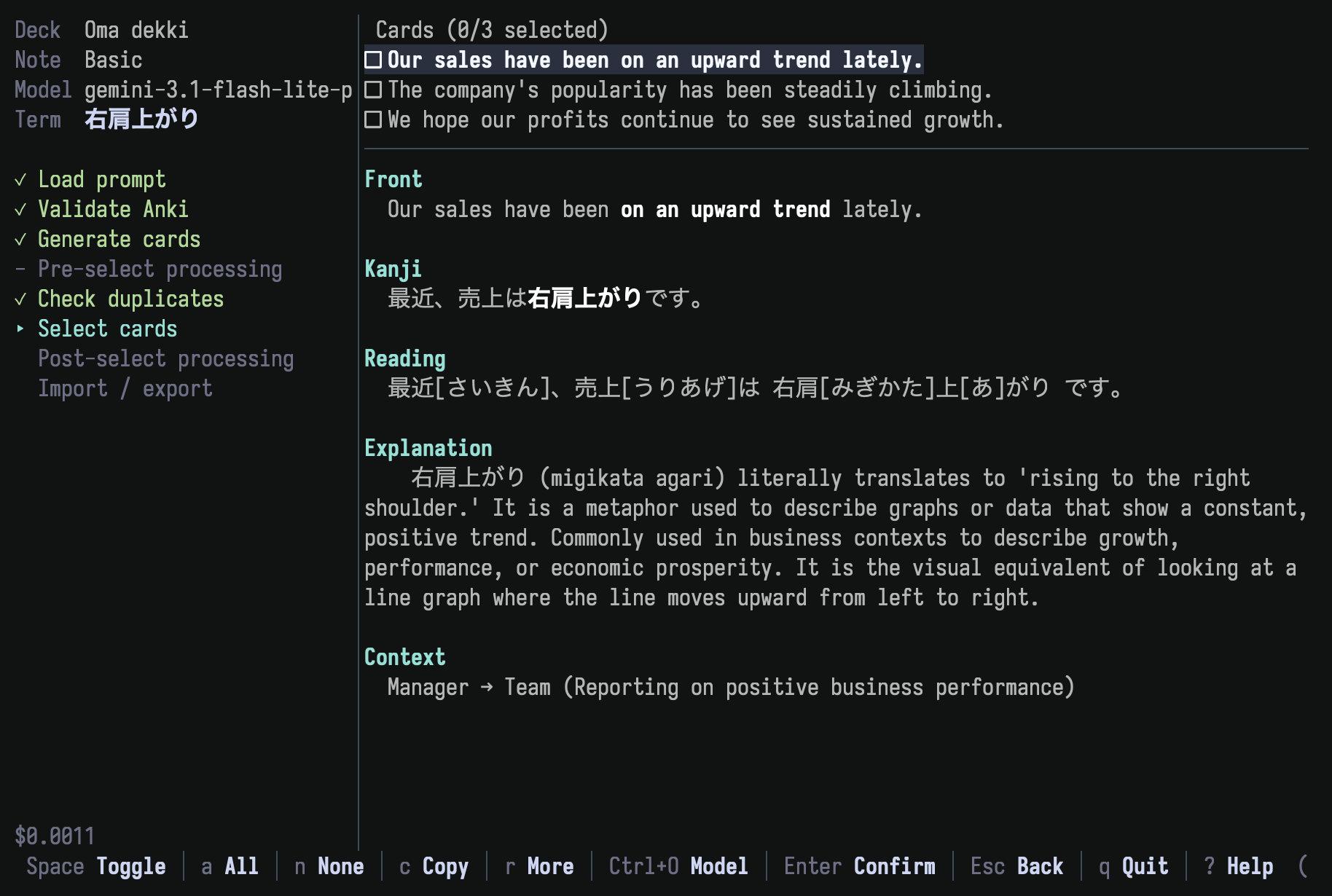
anki-llm generate "会議"Or omit it and enter terms in the TUI. For a batch, press Tab after each term to queue it, then press Enter on the final term. Pasting newline-separated terms creates the same queue.
Use Ctrl+O to open the filterable model picker. It includes known pricing information and changes the model for subsequent requests in the same session. Session token use and estimated cost remain visible in the sidebar.
Review candidates
Section titled “Review candidates”After generation, the selection screen lists candidates and shows the focused card in full:
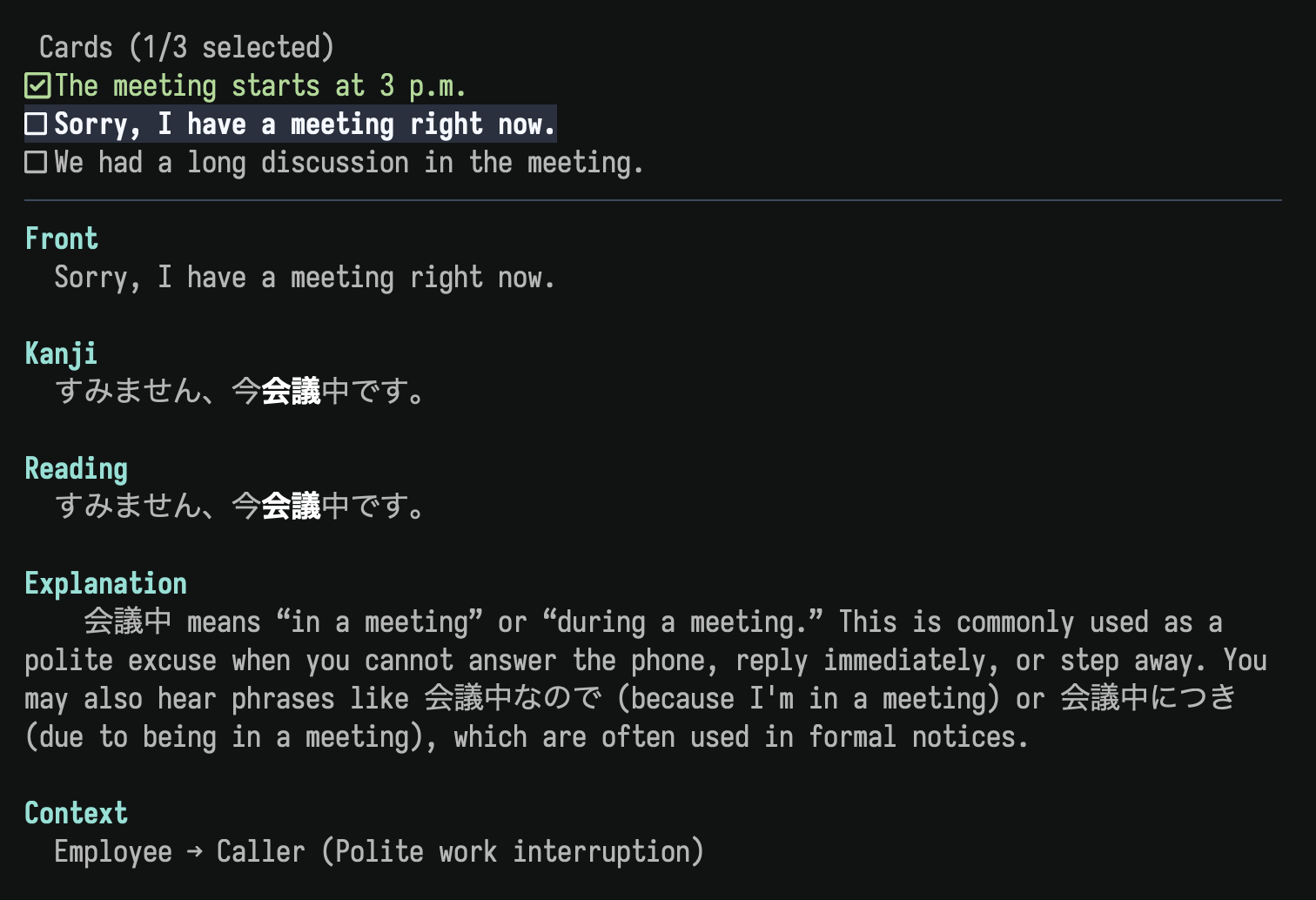
The main review actions are:
- Space toggles the focused card.
- a and n select all or none.
- e opens the focused card in
$EDITOR. - R regenerates one card with your feedback.
- r generates more candidates for the same term.
- t generates candidates for another term.
- d removes a candidate.
- c copies a card to the clipboard.
- z toggles post-selection processing when the prompt configures it.
- Enter confirms the selected cards.
- q or Ctrl-C quits without importing the pending selection.
Press ? for the complete shortcut list for the current screen.
Handle duplicates deliberately
Section titled “Handle duplicates deliberately”Before selection, anki-llm compares the generated value for the note type’s
first field with existing notes in the configured deck. Exact matches receive a
[dup] marker and a field-by-field diff against the Anki note. Duplicates cannot
be selected normally. Press f only when you intentionally want to
force-select one.
Add focused processing steps
Section titled “Add focused processing steps”Generation prompts may define pre_select and post_select LLM steps.
Pre-selection steps can normalize fields or reject poor candidates before you
review them. Post-selection steps can polish or check only the cards you chose.
See Processing steps for transforms, checks, verdicts, ordering, cost, and limitations.
Observe model thinking
Section titled “Observe model thinking”When a supported Gemini, DeepSeek, or Grok model emits reasoning during the primary generation request, the running screen displays it in a temporary Thinking block. The block disappears when generation completes and its content is excluded from raw prompt and response logs.
Gemini thinking can be disabled in configuration when you prefer the normal non-thinking request path. See Configuration for the setting.
Generate without an API key
Section titled “Generate without an API key”Copy mode sends the filled prompt through your clipboard instead of an API:
anki-llm generate "今日" --prompt prompt.md --copy- Paste the copied prompt into a browser-based LLM.
- Copy its complete JSON response.
- Paste the response into the terminal.
- Type
ENDon its own line and press Enter. - Review the validated candidates as usual.
Add TTS audio
Section titled “Add TTS audio”A generation prompt can include a tts: block that names an audio target,
source, provider, and voice. When TTS is configured and a system audio player is
available:
- press p during selection to preview the focused card’s audio;
- selected cards receive finalized audio at import time;
- press p on the summary to replay imported audio.
LLM and TTS credentials remain separate. For example, generation can use OpenRouter while audio uses OpenAI or Azure credentials. See Text-to-speech and TTS providers for configuration.
Choose a safe output path
Section titled “Choose a safe output path”The default interactive flow adds only confirmed cards to Anki. For additional separation, export generated cards to YAML or CSV and import them later:
anki-llm generate "会議" --output cards.yamlanki-llm import cards.yaml --deck "Japanese::Vocabulary"A dry run prints generated cards without starting selection or import. Raw
request logging is useful for debugging but can contain complete card content
and model output. The temporary Thinking block remains excluded. See
generate in the command reference
for all runtime and output options.